 Digital Gameday
Check In at the Game
Scan the QR code shown at the venue to get reporting access for that one game — no account or login required.
Check-in and score reporting functions do NOT require you to download the app, however you may. If you have the app installed, when visiting the QR code, you will be redirected to your app.
GotSport Live App: Apple Store | Google Play
The home team coach or manager will provide you with a QR code to scan with your phone that provides a link to the match in GotSport Live.
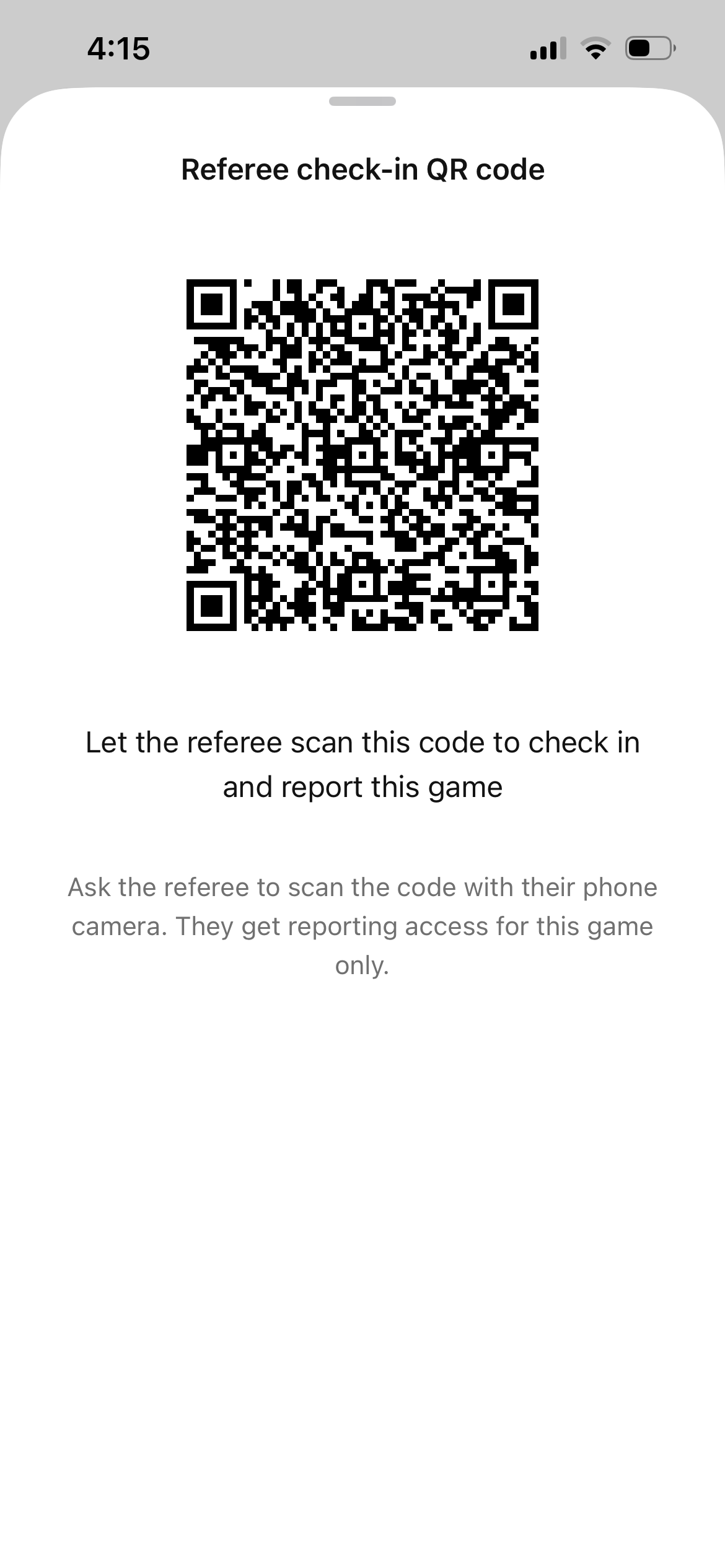
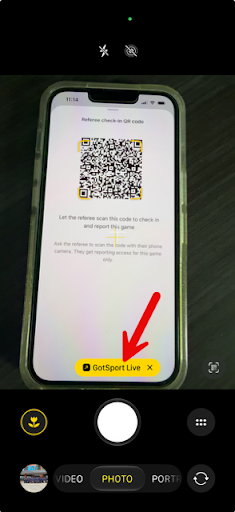
There is no app to install. Scan the provided QR code by opening your phone's camera. Focus on the QR code and it will pull up a link to the match. Tapping on that link will open it in your browser.
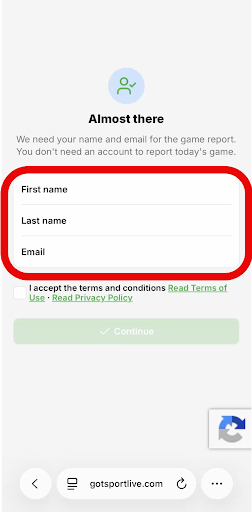
In the browser, you will be asked to enter your first name, last name and email address, logging you as the reporting official for the match.
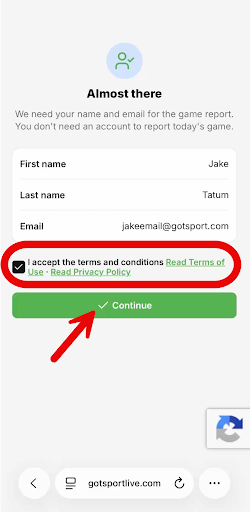
Accept the terms and conditions, then tap the green "continue" button.
You will receive a confirmation message and link to the game.
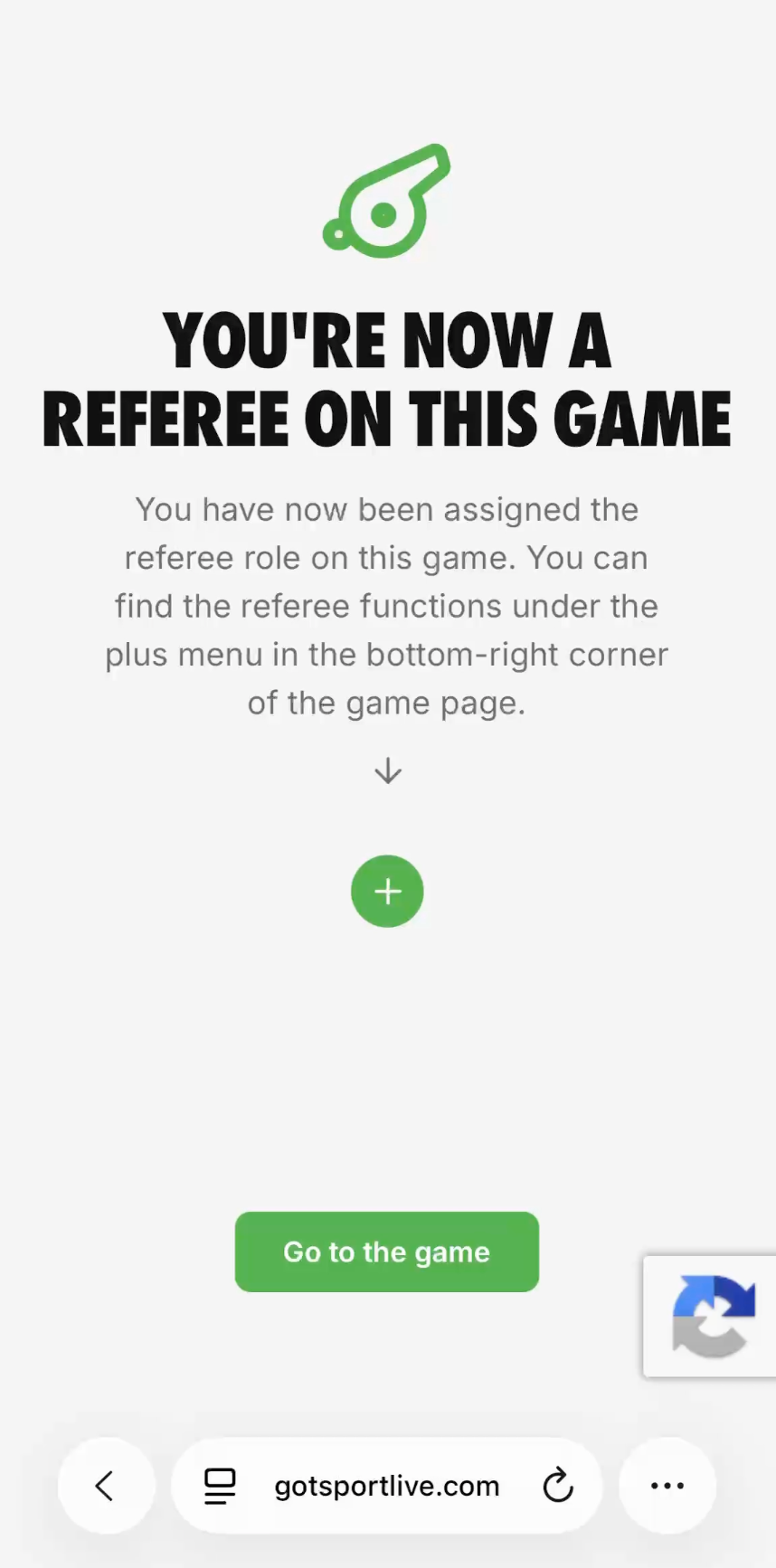
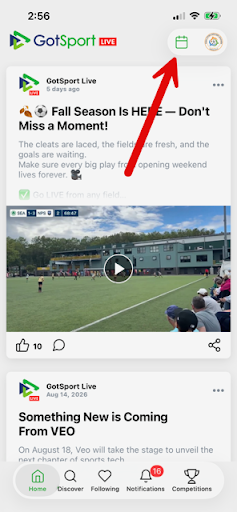
NOTE: If you happen to be a coach, team manager, player or parent that has the GotSport Live app on your phone, the following pages will open in your app. Use the calendar icon in the upper right to find the match.
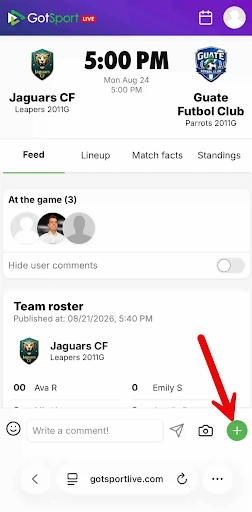
From the match page, use the green "+" in the lower right to access the match menu.
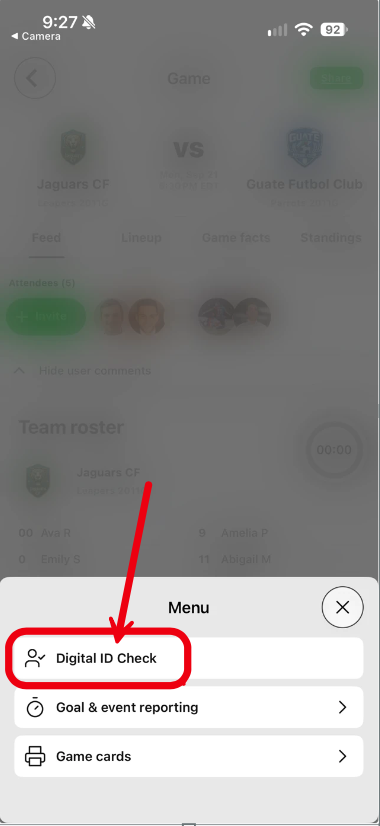
From the menu, select "Digital ID Check".
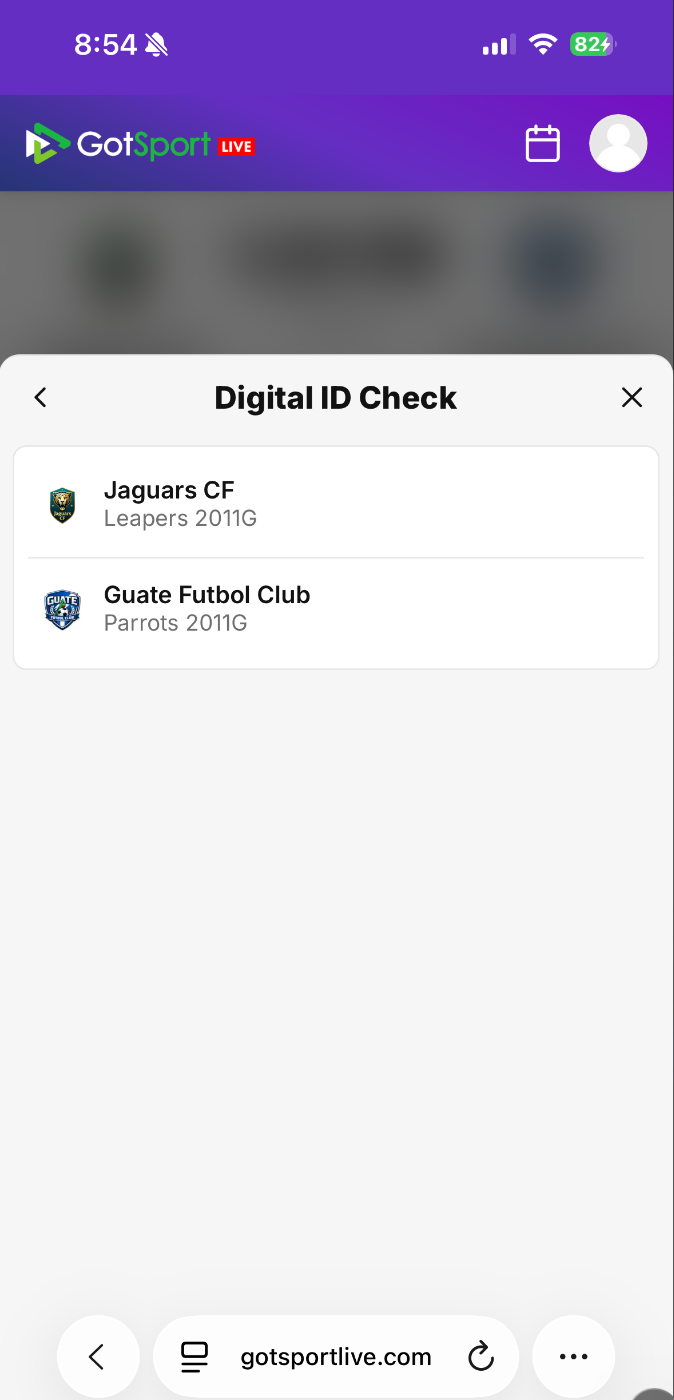
Select the team you want to check in. If a match roster does not load, it may be that the team has not set a team roster specific to this match. The coach or manager can complete this step in their own app.
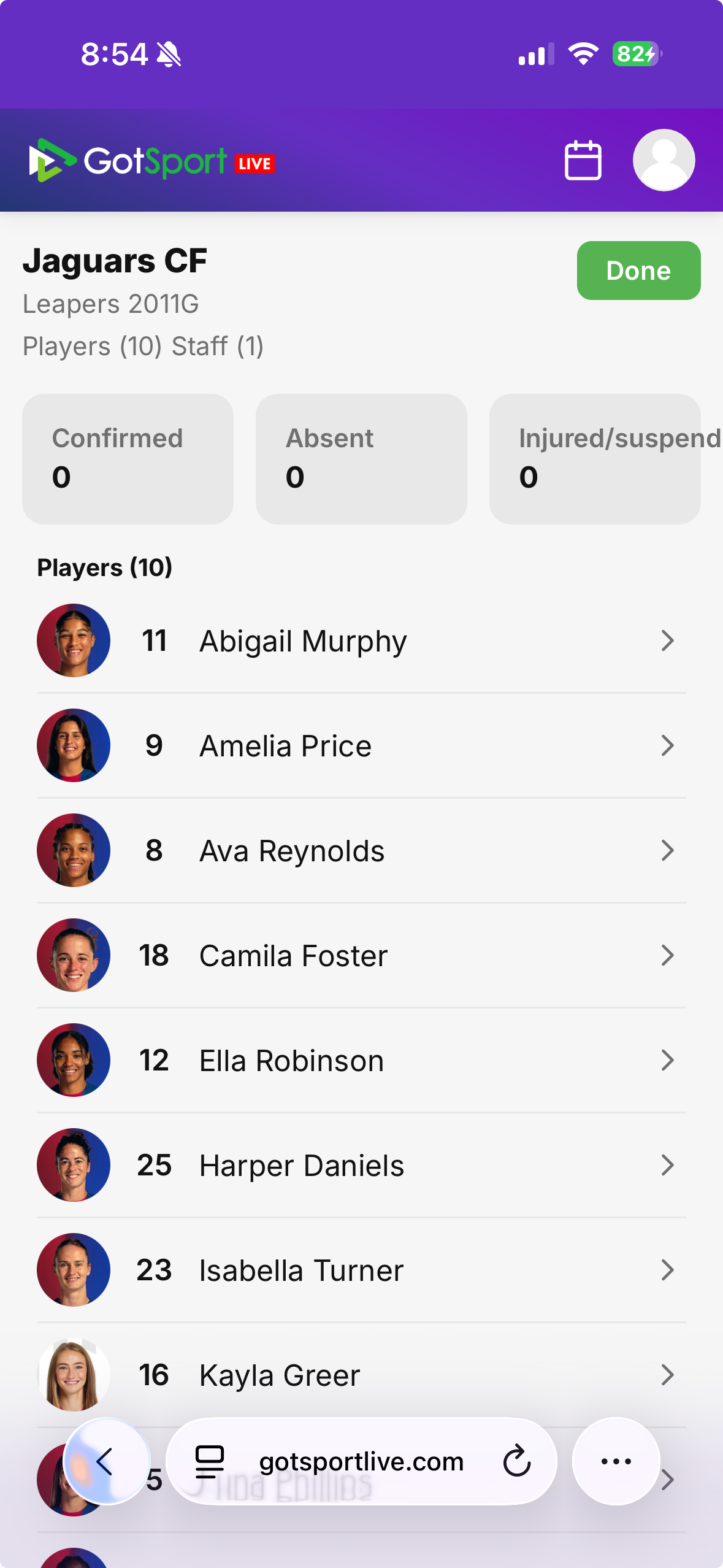
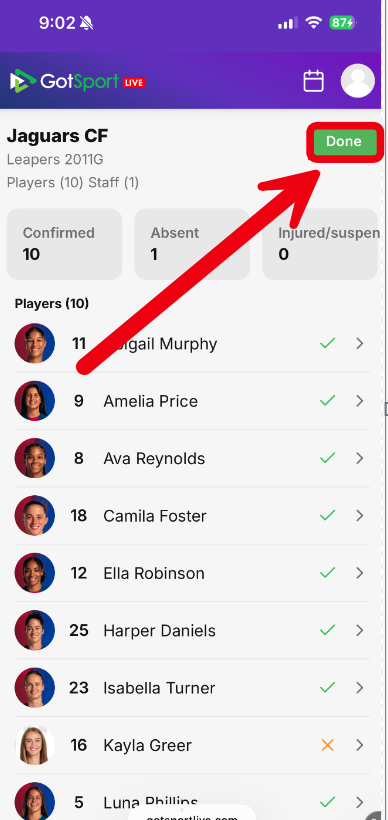
On the team roster page, you will see a list of players and staff on the match roster. Tap on the top player to begin.
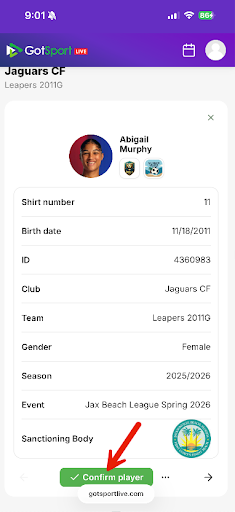
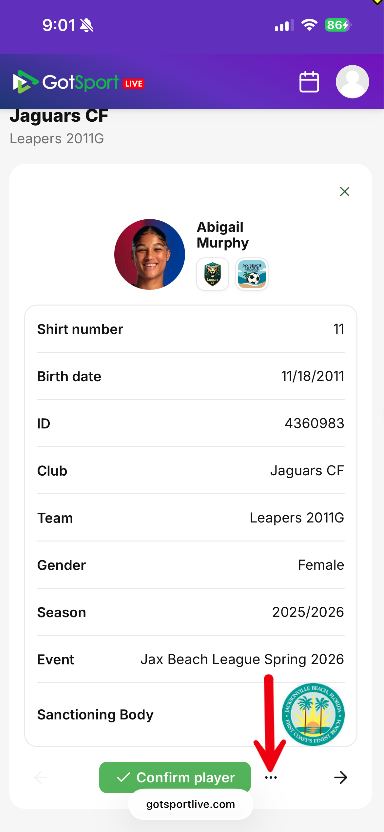
If the player is present and jersey number is correct, tap the green "confirm player" button. This will move you on to the next player.
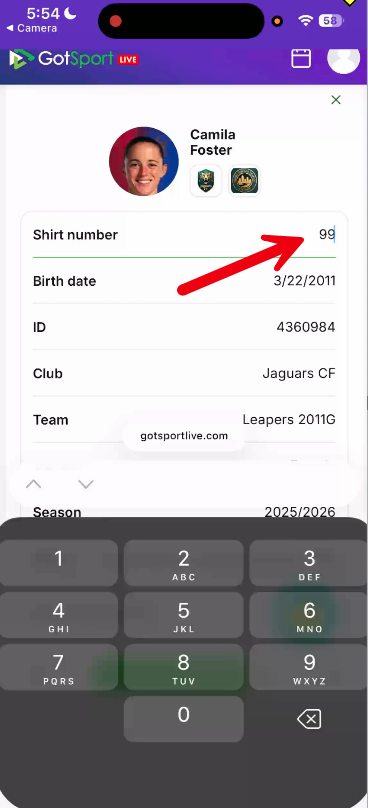
If the player is present, but wearing a different jersey number, tap on the number to update it.
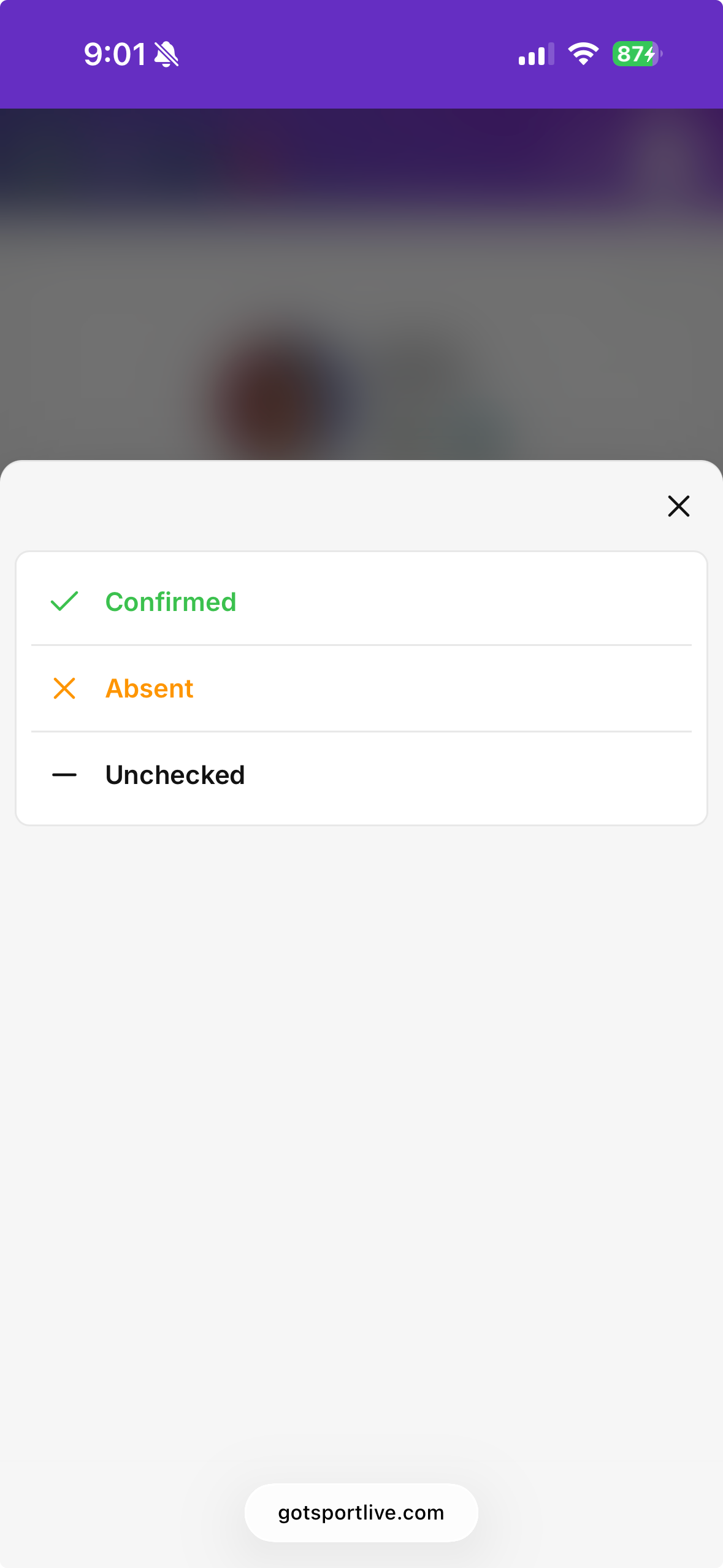
If the player is absent or injured so not being checked in, use the "..." next to the "confirmed" button to pull up those options.
Select the appropriate status for that player or staff member.
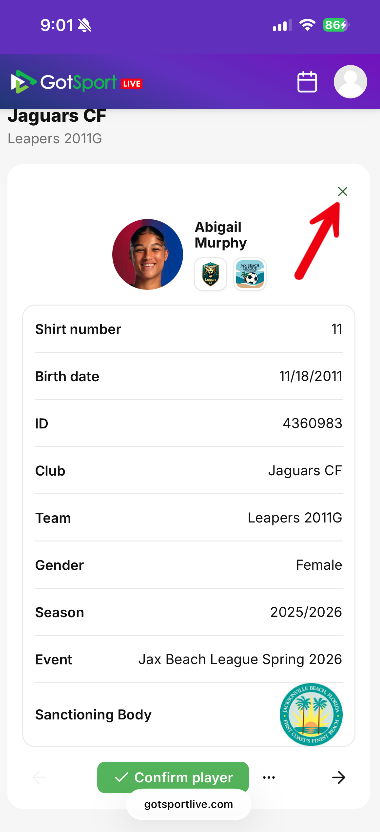
Once the ID check is complete for all players and staff, tap the "x" in the upper right of the final ID card.
Review the check-in status on the team roster. If something needs to be changed, click on that individual and update the information.
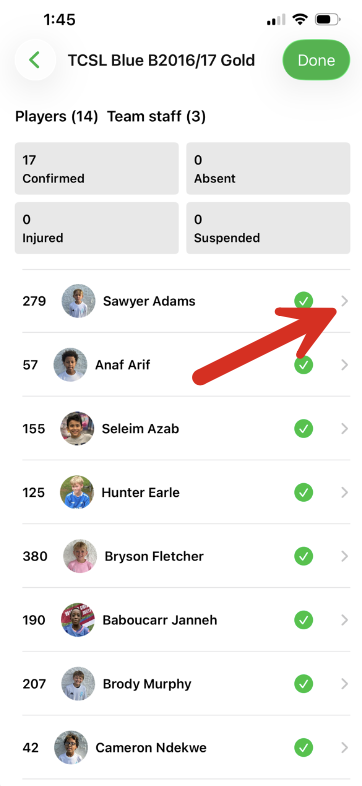
Once all information is correct, click "Done" in the upper right and repeat the process for the other team.
Once both teams are checked in, keep the browser window open. You will return to it after the game to report the score and make any other needed reports.