 Digital Gameday
Team Staff guides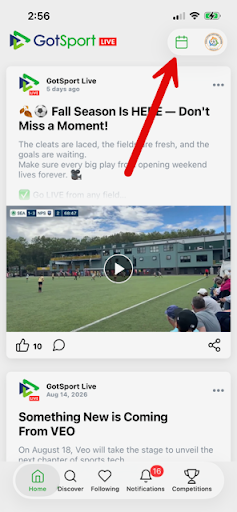
Team Staff
Setting a Gameday Roster
How to set a gameday roster of attending players in the GotSport Live App as a team coach or manager.
Note: Club Pass players should be first added to your league event roster in GotSport before setting a gameday roster in the app.
1Step 1
Tap on the green plus sign in the lower right to open the match management options.
2Step 2
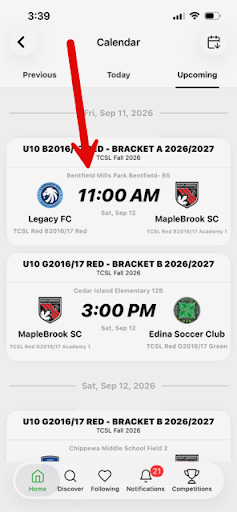
Tap on the match you are wanting to set the gameday roster for.
3Step 3
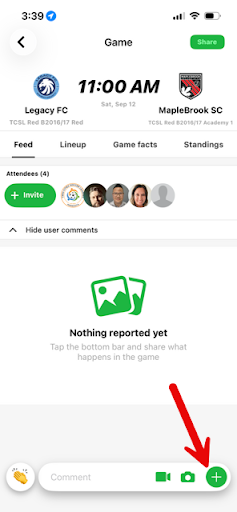
Tap the green "+" icon in the lower right.
4Step 4
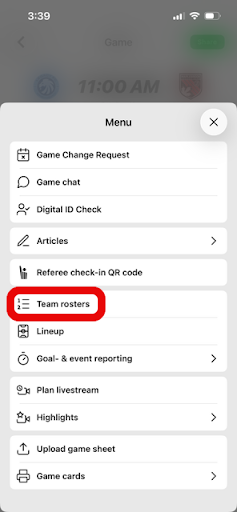
Select "Team Rosters" from the management menu.
5Step 5
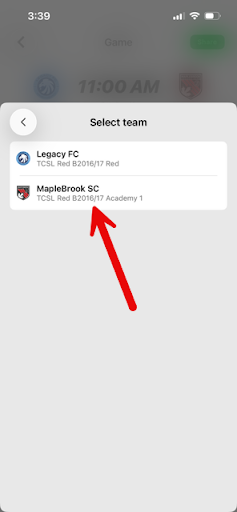
Select your team.
6Step 6
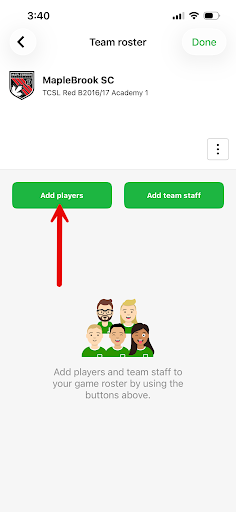
Tap on the green "Add players" button.
7Step 7
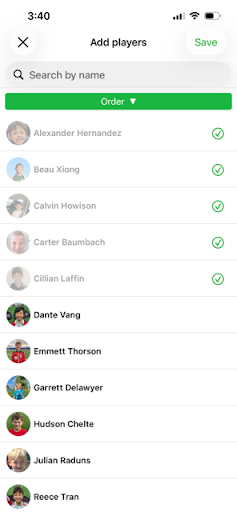
Select the players that are participating in this match, a checkmark will appear next to their name once you tap on the player name.
8Step 8
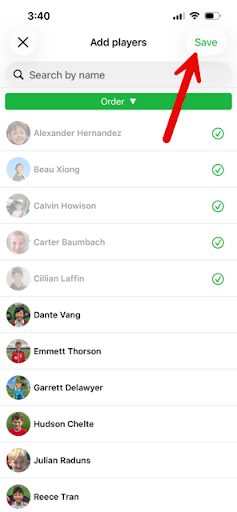
Click "Save" in the upper right once you have selected all of the participating players.
9Step 9
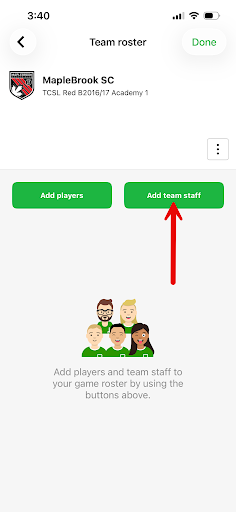
You will now see your attending players in the Team Roster for this match. Tap on the green "Add team staff" button next.
10Step 10
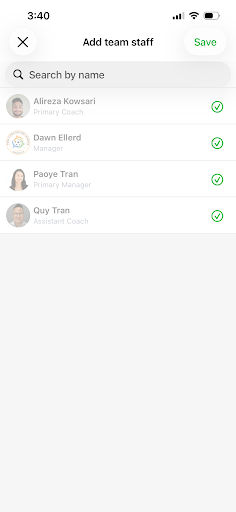
Select the team staff participating in this match. If you don't see expected staff in the available list, please contact your Club Administrator to check on their eligibility status.
11Step 11
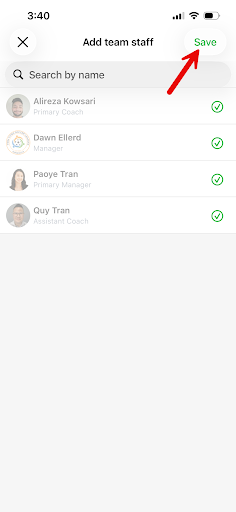
Click "Save" in the upper right once you have selected the participating staff.
12Step 12
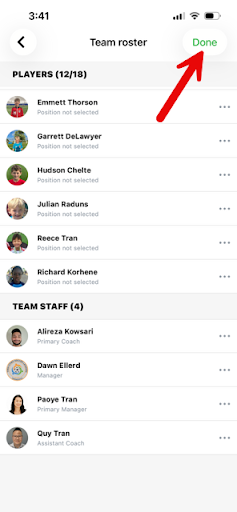
You will now see the attending Team Staff listed below the players. If all of the players and staff are properly listed, tap "Done" in the upper right. At this point, your gameday roster is set and no further action is needed. There are several other popups that will appear however, detail on those optional steps below.
13Step 13
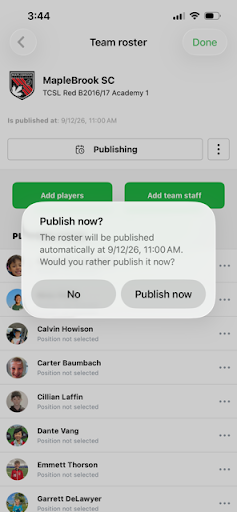
You will be asked to Publish your match roster. This pushes your roster to the live match feed. This is an optional step and has no impact on the match officials' ability to check in your team.
14Step 14
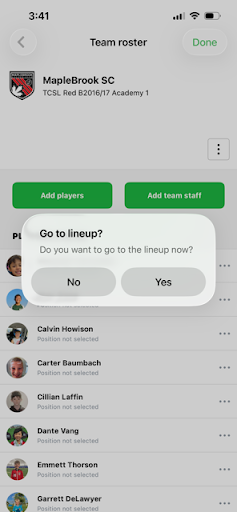
You will be asked whether you want to set up a team lineup (this is a list of starting players by position). This is an optional step and has no impact on the match officials' ability to check in your team.